
Learning how to automate sales process with HubSpot CRM can transform the way your sales team works. Instead of spending hours on repetitive tasks like sending follow-up emails, assigning leads, and updating contact information, your team can focus on building relationships and closing deals. HubSpot CRM automation tools make this possible with powerful workflows that handle the heavy lifting automatically.
In this comprehensive guide, we will explore everything you need to know about HubSpot sales automation, including step-by-step examples, pricing, tools, and certification opportunities. Whether you are a small business owner, sales manager, or marketing professional, this guide will show you how to streamline your sales process and boost productivity.
What is HubSpot Sales Automation
HubSpot sales automation refers to the platform capabilities that allow you to create workflows and sequences that automatically perform actions based on specific triggers and conditions. Instead of manually performing repetitive tasks, automation does the work for you, freeing up valuable time for your sales team.
HubSpot automation workflows enable you to:
-
Send automated follow-up emails to prospects
-
Assign leads to sales reps based on specific criteria
-
Update deal stages automatically
-
Create tasks and notifications
-
Enroll contacts in email sequences
-
Nurture leads through multi-step campaigns
-
Score leads based on engagement
-
Track prospect behavior and interactions
Understanding HubSpot CRM: How It Works
Before diving into automation, it is important to understand how HubSpot CRM functions as the foundation for all your sales automation. HubSpot CRM organizes everything around contacts, which are the center of your customer relationship management system.
HubSpot CRM works by:
Contact Management: All customer data is stored in one centralized location, including names, email addresses, phone numbers, company information, and custom properties you create.
Company Records: You link contacts to companies, creating a complete view of your organization and all associated individuals within that company.
Deal Tracking: You create deals representing potential sales opportunities, and move them through customized pipeline stages as they progress through your sales process.
Activity Logging: Every email, call, and interaction automatically logs to the contact record, creating a complete timeline of your relationship with each prospect.
Task Management: You create tasks to remind your team of important actions needed for each contact or deal.
Reporting and Analytics: HubSpot provides dashboards showing pipeline visibility, sales forecasting, and team performance metrics.
For small business owners and growing sales teams, understanding how HubSpot CRM works is essential before implementing sales automation tools and workflows.
HubSpot Sales Hub Pricing Structure
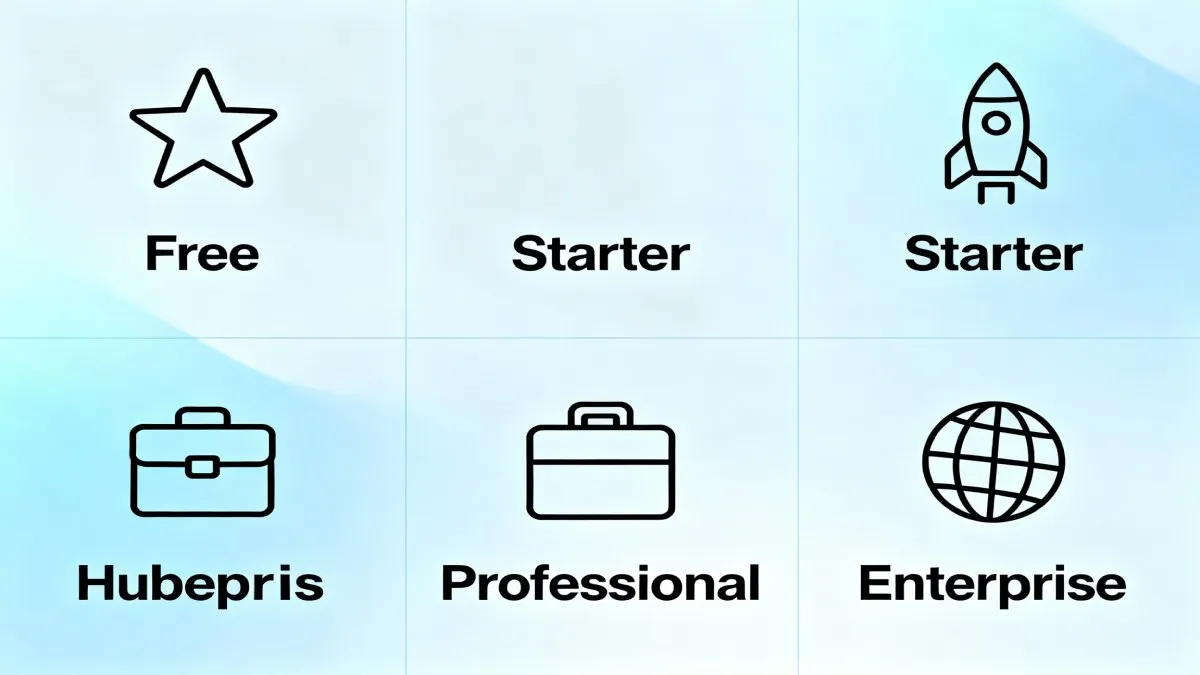
Understanding HubSpot Sales Hub pricing helps you choose the right tier for your automation needs. HubSpot offers multiple pricing levels, each with increasing automation capabilities.
HubSpot Sales Hub Free Plan
-
$0 per month
-
Two user seats included
-
Contact and company management
-
Email tracking and templates
-
Basic deal tracking
-
Task management
-
Meeting scheduler
-
Free Sales Chrome extension features
-
No workflows or advanced automation
Start automating your sales workflow with HubSpot free CRM today at no cost.
HubSpot Sales Hub Starter Plan
-
$15 per month per user (billed annually as $9 per user)
-
Includes all Free plan features plus:
-
Sales sequences for basic email automation
-
Task automation triggered by deal stage changes
-
Basic lead routing
-
Email notifications
-
Deal pipeline customization
-
Simple workflow automation
HubSpot Sales Hub Professional Plan
-
$100 per month per user (billed annually at $90 per user)
-
One-time onboarding fee: $1,500
-
Includes all Starter features plus:
-
Up to 300 customizable workflows
-
Advanced automation with branching and conditions
-
Lead scoring and qualification automation
-
Advanced email sequences
-
Sales forecasting
-
Advanced reporting and analytics
-
Deal probability tracking
-
Dedicated onboarding support
HubSpot Sales Hub Enterprise Plan
-
$150 per month per user (billed annually)
-
One-time onboarding fee: $3,500
-
Includes all Professional features plus:
-
Up to 1,000 customizable workflows
-
Custom objects and fields
-
Advanced permission management
-
Dedicated account manager
-
Priority support
-
Advanced forecasting and pipeline management
For small businesses just starting with sales automation, the Free or Starter plan provides adequate automation capabilities. Growing teams benefit from the Professional plan's advanced automation features. Enterprise organizations require the unlimited workflows and custom features of the Enterprise plan.
Start automating your sales workflow with HubSpot free CRM today at no cost.
How to Automate Sales Process with HubSpot CRM: Step-by-Step Examples
Let us walk through practical examples of how to automate sales process with HubSpot CRM. Each example demonstrates real-world automation scenarios you can implement in your business.
Example 1: Automated Lead Assignment Workflow
One of the most common sales automation tasks is assigning leads to sales representatives automatically. This ensures no lead sits without attention and that leads go to the right person.
Step 1: Create a new Contact-based workflow from scratch
Step 2: Set your enrollment trigger as “Form submission” – choose which forms trigger this workflow (e.g., “Request a Demo” form)
Step 3: Add an action “Enroll in Workflow” and select your lead enrichment workflow if you have one
Step 4: Add a Branch action based on a specific criterion, such as:
-
Industry (assign tech companies to one rep, manufacturing companies to another)
-
Geographic location (assign North American leads to one team, European leads to another)
-
Lead score (assign high-scoring leads to senior reps)
Step 5: For each branch, add action “Rotate record to owner” or “Update property” to assign the lead to the appropriate sales representative
Step 6: In the “none met” branch, add “Rotate record to owner” to create a round-robin assignment when criteria do not match
Step 7: Add action “Send an internal email notification” to alert the assigned sales rep that a new lead has been assigned to them
Step 8: Review and activate the workflow
This automation ensures leads are distributed fairly and assigned to the most appropriate team members without manual intervention.
Example 2: Automated Email Sequences for Lead Nurturing
Email sequences are powerful automation workflows that send targeted messages to prospects over time, nurturing them through the sales funnel.
Step 1: Create a Contact-based workflow from scratch
Step 2: Set enrollment trigger as “Lifecycle stage = Marketing Qualified Lead” or based on a specific form submission
Step 3: Add action “Delay” for two days to give the prospect time to read your first message
Step 4: Add action “Send email” – select your first nurture email template with personalization tokens
Step 5: Add another “Delay” action for three more days
Step 6: Add action “Send email” – select your second follow-up email
Step 7: Add a Branch action checking if the prospect engaged with the previous email (opened or clicked)
Step 8: For the “Engaged” branch, add action “Send email” with advanced content, potentially enrolling them in a sales sequence
Step 9: For the “Did not engage” branch, add action “Send email” with a re-engagement message or different angle
Step 10: Review and activate the workflow
This automation nurtures leads automatically while personalizing the experience based on their engagement.
Example 3: Automated Deal Stage Progression
This automation moves deals through your pipeline stages automatically based on specific actions and triggers.
Step 1: Create a Deal-based workflow from scratch
Step 2: Set enrollment trigger based on conditions like:
-
A contact fills out a proposal request form
-
A quote is created and sent
-
A meeting is scheduled
Step 3: Add action “Set property value” to move the deal to “Proposal Sent” stage
Step 4: Add a Branch action based on whether a document was viewed (if using integrations like PandaDoc)
Step 5: For the “Document viewed” branch, set property to move deal to “In Negotiation” stage
Step 6: Add action “Create task” to remind the sales rep to follow up within 24 hours
Step 7: Add another Branch based on whether a meeting is booked
Step 8: For the “Meeting booked” branch, set property to “Negotiation” stage and create a task
Step 9: Review and activate the workflow
This automation keeps your pipeline moving without requiring manual stage updates from your sales team.
Example 4: Lead Scoring and Prioritization Workflow
Automatically score leads based on their behavior, helping your sales team prioritize high-value prospects.
Step 1: Create a Contact-based workflow from scratch
Step 2: Set enrollment trigger as form submission or lifecycle stage change
Step 3: Add action “Update property” to set initial lead score based on company size or industry
Step 4: Add Branch based on engagement signals:
-
Email opens
-
Link clicks
-
Website visits
-
Content downloads
Step 5: For high-engagement contacts, add action “Set property” to increase lead score
Step 6: Add another Branch based on lead score threshold
Step 7: For high-scoring leads (e.g., over 50 points), add actions:
-
Update lifecycle stage to “Marketing Qualified Lead”
-
Create a task for immediate follow-up
-
Send internal notification to sales team
Step 8: For lower-scoring leads, add actions to continue nurturing through drip campaigns
Step 9: Review and activate the workflow
This automation ensures your sales team focuses on prospects most likely to convert.
Explore HubSpot Sales Hub features and upgrade when you are ready
HubSpot Automation Workflows: Advanced Techniques
Beyond basic examples, HubSpot automation workflows offer advanced capabilities for sophisticated sales processes.
Workflow Actions Available:
-
Delay: Pause actions for specific time periods
-
Branches: Create conditional if-then paths based on specific criteria
-
Communications: Send emails, SMS, or social messages
-
CRM Actions: Create, update, or manage contact, company, and deal properties
-
Marketing Actions: Add or remove contacts from lists, manage marketing contact status
-
Data Operations: Use webhooks, custom code, or data formatting
-
Connected Apps: Trigger actions in integrated applications like Slack, Zapier, Google Sheets, or Zoom
Advanced Workflow Patterns:
Multi-Step Lead Qualification: Create complex workflows that gradually qualify leads through multiple engagement checkpoints, automatically routing fully qualified leads to sales.
Account-Based Marketing Workflows: Use contact and company data to create sophisticated account-level workflows that coordinate messaging across multiple contacts within target accounts.
Customer Onboarding Automation: Build workflows that automatically guide new customers through onboarding steps, create implementation tasks, and notify service teams.
Churn Prevention Workflows: Detect signs of at-risk customers (declining engagement, support tickets, contract renewal dates approaching) and automatically trigger retention campaigns or escalate to customer success teams.
Complete HubSpot Sales Software certification free and boost your career
HubSpot Sales Course and Certification
If you want to master HubSpot sales automation and expand your career opportunities, HubSpot offers free certification programs through HubSpot Academy.
HubSpot Sales Software Certification
-
Duration: 2 hours to complete
-
Format: Online training with lessons, videos, and quizzes
-
Topics covered: Sales Hub features, automation workflows, sales sequences, pipeline management, and reporting
-
Cost: Completely free
-
Certificate validity: Active for one year, requiring recertification afterward
-
Benefits: Demonstrates expertise in HubSpot sales tools, improves career prospects, shows clients and employers your knowledge
HubSpot Sales Course Benefits:
-
Learn HubSpot from official instructors with real-world expertise
-
Self-paced learning allows you to study at your convenience
-
Practical examples show how to implement features in real business scenarios
-
Certification is recognized across the industry
-
Free access to updated course materials as HubSpot evolves
-
Ability to maintain current knowledge with recertification
Steps to Get HubSpot Certified:
1. Create a Free Account: Sign up for a free HubSpot account at hubspot.com
2. Access HubSpot Academy: Go to academy.hubspot.com and create your academy account
3. Select Your Course: Search for “HubSpot Sales Software” certification or related sales courses
4. Complete All Lessons: Work through each lesson, watching videos, and taking notes
5. Pass the Quizzes: Complete each quiz as you progress through lessons
6. Pass the Final Certification Exam: Take the comprehensive exam covering all material
7. Earn Your Certificate: Download and display your certificate on LinkedIn, your resume, or your website
HubSpot Sales Extension: Browser-Based Sales Tools
The HubSpot Sales Extension (formerly HubSpot Sales Chrome Extension) brings HubSpot CRM functionality directly into your email inbox and web browser. This tool is essential for remote sales teams and distributed workforces.
Free Features of HubSpot Sales Extension:
Email Tracking: See when prospects open your emails and click on links within those emails. Get real-time notifications of prospect engagement to know the best time to follow up.
CRM for Gmail: Access HubSpot directly from your Gmail interface without switching tabs. View contact records, deal information, and activity history while composing emails.
Email Templates and Snippets: Use pre-written email templates for common sales situations. Insert personalization variables like contact name, company, and industry automatically.
Meeting Scheduler: Create customized meeting links directly from Gmail. Prospects can view your availability and book meetings at their convenience. Options include one-on-one, group, or round-robin scheduling.
CRM Sidebar: Access your HubSpot contact records from any website. See prospect company information, previous interactions, and deal status while researching prospects online.
Add Contacts: Capture new contacts from websites, LinkedIn profiles, or email signatures directly into HubSpot without manual entry.
Calling and Emailing: Make calls and send emails directly from the extension. Log all communications automatically to the contact record.
Breeze AI Copilot: Use artificial intelligence to help research prospects, update contact data, and compose professional emails.
Paid Features of HubSpot Sales Extension:
Automated Personal Outreach: Create and schedule personalized email sequences that automatically enroll prospects and send tailored messages based on their engagement.
Advanced Meeting Scheduling: Additional features for complex meeting coordination across time zones and multiple team members.
Sales Productivity Tools: Premium features for engagement tracking, advanced personalization, and sales intelligence.
Download the HubSpot Sales Chrome Extension to bring automation to your inbox.
HubSpot Sales Automation Best Practices
Implementing successful sales automation requires more than just turning on workflows. Follow these best practices to maximize your results.
1. Define Clear Business Processes First
Before automating anything, document your existing sales process. Map out:
-
What triggers each action in your sales process
-
Who should be involved at each stage
-
What information needs to be collected
-
How long each stage typically lasts
-
What determines stage progression
2. Start Small and Scale
Begin with one or two key workflows addressing your biggest pain points:
-
Lead assignment (saves most time)
-
Follow-up email sequences (improves consistency)
-
Lead scoring (improves prioritization)
As your team gets comfortable with automation, add more complex workflows.
3. Keep Data Clean
Automation depends on accurate, complete data. Before automating:
-
Import existing contacts and clean up data
-
Establish data entry standards for your team
-
Use automation to keep data current
-
Regularly audit and maintain contact properties
4. Test Before Activating
Always test workflows with a small group before full activation:
-
Create test contacts and trigger the workflow
-
Verify emails send correctly and timing works
-
Check that all actions execute properly
-
Review the user experience
5. Monitor and Optimize
Continuously improve your automation:
-
Track workflow completion rates
-
Monitor email open and click rates
-
Measure time saved per workflow
-
Gather team feedback on effectiveness
-
Adjust workflows based on results
6. Use Conditional Logic
Make workflows smarter with branches and conditions:
-
Route leads based on specific criteria
-
Send different messages based on engagement
-
Create personalized experiences at scale
-
Adjust follow-up frequency based on responses
7. Integrate with Other Tools
Maximize automation by connecting HubSpot with your other business tools:
-
Email integration (Gmail, Outlook)
-
Calendar sync (Google Calendar, Office 365)
-
Meeting software (Zoom, Calendly)
-
Document management (PandaDoc, DocuSign)
-
Communication (Slack, Microsoft Teams)
-
Analytics (Google Analytics, Mixpanel)
Start automating your sales workflow with HubSpot free CRM today at no cost
Using HubSpot CRM for Small Business Automation
Small businesses face unique challenges with limited resources but high ambitions. HubSpot CRM offers affordable automation solutions perfect for growing teams.
Small Business Automation Workflows:
Automated Lead Capture: Set up lead forms on your website. HubSpot automatically creates contact records and sends confirmation emails, freeing up administrative time.
Simple Lead Assignment: Route leads to available team members based on geography, industry, or product interest using simple round-robin rules.
Follow-Up Reminders: Create automatic tasks when prospects do not respond within specified time periods, ensuring no leads fall through the cracks.
Sales Milestone Notifications: Alert team members when deals reach critical stages like “Proposal Sent” or “Contract Signed.”
Customer Onboarding Automation: Automatically guide new customers through onboarding steps, send welcome materials, and create internal tasks.
Renewal Reminders: Automatically create tasks when customer contracts approach renewal dates, giving your team time to prepare renewal conversations.
HubSpot CRM for Small Business Examples:
A small marketing agency uses HubSpot to automatically assign client inquiries to the appropriate account manager based on service type, reducing assignment time from 30 minutes to zero.
A local service business uses email sequences to automatically follow up with past customers offering seasonal services, resulting in 25 percent repeat business without staff effort.
A B2B software company uses lead scoring to automatically identify sales-ready prospects, allowing their small sales team to focus on high-probability deals and increase close rates.
Small Business Pricing Strategy:
The HubSpot Free plan is perfect for very small teams (2 people) or testing before upgrading. The Starter plan ($15 per user per month billed annually) provides essential automation for growing teams. Many small businesses find the Starter plan sufficient for several years before needing Professional features.
Complete HubSpot Sales Software certification free and boost your career.
How Does HubSpot CRM Work: From Setup to Execution
Understanding the complete workflow from initial setup to automated execution helps you implement automation successfully.
Step 1: Account Setup and Configuration
-
Create your HubSpot account
-
Add your team members
-
Customize contact properties for your business
-
Create deal stages matching your sales process
-
Connect your email and calendar
-
Set up your meeting scheduler
Step 2: Data Import
-
Import existing contacts from spreadsheets or previous CRM
-
Import companies and associate them with contacts
-
Import existing deals if migrating from another system
-
Clean and verify imported data
Step 3: Workflow Creation
-
Identify automation opportunities
-
Create workflows addressing your top pain points
-
Test workflows with small groups
-
Optimize based on results
Step 4: Automation Execution
-
Workflows run automatically based on triggers
-
Contacts enroll and progress through workflows
-
Actions execute automatically
-
Reports track workflow performance
-
Optimization continues based on metrics
Step 5: Team Adoption
-
Train your team on the new automated processes
-
Demonstrate time savings and benefits
-
Encourage team feedback
-
Continuously improve automation based on usage
HubSpot CRM Explained: Key Concepts for Sales Automation
Several important concepts make HubSpot sales automation possible and effective.
Workflows: Automated sequences of actions triggered by specific events or conditions. Workflows are the core of HubSpot sales automation.
Sequences: Email-based workflows that automatically send personalized messages to prospects over time with customizable delays and conditional branches.
Lead Scoring: Automatic calculation of lead quality based on engagement signals like email opens, website visits, and form submissions.
Lifecycle Stages: Contact status categories (Subscriber, Lead, Marketing Qualified Lead, Sales Qualified Lead, Customer, Evangelist, Other) that help track prospect progression.
Pipeline Stages: Custom deal stages representing progression through your sales process (e.g., Prospecting, Proposal, Negotiation, Closed-Won).
Contact Properties: Fields storing information about contacts. Standard properties include email and company, while custom properties track business-specific information.
Conditional Branching: Workflow logic that creates different action paths based on specific criteria, enabling personalized automation at scale.
Triggers: Events that initiate workflows, such as form submissions, deal creation, or contact list membership changes.
Integrations: Connections between HubSpot and other business software that enable data synchronization and coordinated automation across your tech stack.
HubSpot CRM Free Tutorial for Beginners
If you are completely new to HubSpot CRM, follow this step-by-step tutorial.
Step 1: Sign Up
Go to hubspot.com and click “Get started free.” Enter your email, company name, number of employees, and website. Click “Create account.” HubSpot will ask a few questions to customize your experience.
Step 2: Explore the Dashboard
After logging in, you will see your main HubSpot dashboard. The left sidebar contains navigation for Contacts, Companies, Deals, Tasks, and more. Take a moment to explore each section to understand the layout.
Step 3: Add Your First Contact
Click “Contacts” in the left sidebar. Click “Create contact” in the top right. Enter a contact email address (the primary identifier in HubSpot). Add additional information like first name, last name, company, and phone number. Click “Create.”
Step 4: Import Contacts
If you have existing contacts in a spreadsheet, click “Import” next to “Create contact.” Follow the import wizard. HubSpot will automatically map spreadsheet columns to CRM fields. Complete the import process.
Step 5: Create a Company
Click “Companies” in the left sidebar. Click “Create company.” Enter the company name and other details. Click “Create.” Associate contacts with the company.
Step 6: Connect Your Email
Click your profile icon in the top right corner. Select “Email sync.” Follow instructions to sync Gmail or Outlook. This automatically logs emails to contact records.
Step 7: Create Your First Deal
Click “Deals” in the left sidebar. Click “Create deal.” Enter deal name, company, and amount. Select the deal stage. Click “Create.” Now you can track this opportunity through your sales process.
Step 8: Set Up a Workflow
Click “Automation” in the left sidebar. Click “Create workflow.” Select “Contact-based workflow” and choose “From scratch.” Add your first trigger and action. Test with a real contact before activating.
Frequently Asked Questions About HubSpot Sales Automation
What is the best way to automate sales process with HubSpot CRM?
The best approach is to start with your biggest pain point. Most teams benefit first from automating lead assignment, ensuring leads reach the right sales rep immediately. Next, automate follow-up sequences so prospects receive timely messages. Finally, add lead scoring to help your team prioritize high-value prospects. This three-step approach typically saves 10-15 hours per week for sales teams.
How to automate sales process with HubSpot CRM example for small teams?
For small teams, begin by automating lead assignment using round-robin rules to ensure fair distribution. Next, set up email sequences for follow-ups. Finally, create task reminders for important follow-ups. These three workflows alone typically save 5-10 hours weekly for teams of 2-5 people.
Can I automate sales process without technical skills using HubSpot CRM?
Yes. HubSpot is specifically designed for non-technical users. The workflow builder uses a simple drag-and-drop interface. You do not need coding skills or technical knowledge. Many users create their first workflows within hours of signing up.
What HubSpot sales automation tools are best for email marketing?
HubSpot sequences and email workflows are best for email marketing automation. These allow you to create multi-step campaigns with conditional branching, personalization, and engagement tracking. You can also use marketing automation features in HubSpot Marketing Hub for even more sophisticated campaigns.
How long does it take to see results from HubSpot sales automation?
Most teams see immediate results with lead assignment workflows (same day). Email sequence automation typically shows results within the first week as engagement data accumulates. Lead scoring and deal pipeline automation show clearer benefits after 2-4 weeks as patterns emerge. The real payoff comes after 2-3 months as your team adjusts to relying on automation.
How to automate sales process with HubSpot CRM integration with other tools?
HubSpot integrates with over 1,500 applications. Use Zapier for custom integrations, or choose native integrations directly in HubSpot. Common integrations include Gmail (automatic email logging), Calendly (automatic meeting capture), Slack (automated notifications), and PandaDoc (automatic deal stage updates when documents are viewed).
What is HubSpot sales automation certification value?
Earning HubSpot certification demonstrates professional expertise and is valued by employers and clients. It shows you understand sales tools, automation workflows, and best practices. Certification helps with career advancement, increases credibility when selling HubSpot implementation services, and keeps your knowledge current as the platform evolves.
How does HubSpot automation improve sales team productivity?
HubSpot automation eliminates time-consuming manual tasks. Teams report saving 10-20 hours weekly through automation. Time saved comes from:
-
Eliminating manual lead assignment (2-3 hours weekly)
-
Automating follow-up emails (3-5 hours weekly)
-
Automatic data entry and field updates (2-4 hours weekly)
-
Reducing manual list management (1-2 hours weekly)
Is HubSpot automation suitable for large enterprises?
Yes. HubSpot Enterprise plan supports up to 1,000 workflows with unlimited customization. Many large organizations use HubSpot for specific departments (sales, marketing, service) while others use it enterprise-wide. The platform scales with your business.
What does HubSpot CRM login involve?
Simply go to hubspot.com and click “Log in” in the top right corner. Enter your email and password. If you have single sign-on enabled, follow your organization procedures. After logging in, you land on your CRM dashboard.
How to download HubSpot CRM software?
HubSpot is cloud-based software accessed through your web browser. No download is required. However, the HubSpot Sales Chrome extension can be downloaded from the Chrome Web Store for browser-based sales tools in Gmail.
Conclusion
Learning how to automate sales process with HubSpot CRM provides significant benefits for businesses of all sizes. From lead assignment to email sequences to deal pipeline automation, HubSpot workflows eliminate repetitive tasks and help your team focus on what matters most: building relationships and closing deals.
Whether you are just getting started with HubSpot CRM tutorials for beginners or looking to implement advanced HubSpot automation workflows, the tools are accessible, the learning resources are free, and the benefits are substantial. The key is starting small with your biggest pain point, testing thoroughly, and gradually building a comprehensive automation strategy.
With the right implementation of HubSpot sales automation, most businesses report:
-
10-20 hours saved weekly through automation
-
Faster lead response times
-
Improved lead distribution and fairness
-
Higher email engagement rates through consistent follow-up
-
Better sales forecasting through automated pipeline management
-
Increased deal velocity as prospects move through stages faster
Now is the time to take action and transform your sales process through HubSpot CRM automation.
Read More: Best HubSpot Alternatives: Complete Guide to Find Your Perfect CRM Solution

Julie Jung
Julie is a Senior Research Analyst at Shrtu concentrating on sales and marketing software. Prior to joining Shrtu, she worked at a Big 4 accounting firm and at a BI software company where her roles focused on supporting growth and B2B marketing and sales efforts. These experiences have cultivated her passion for learning how technology impacts businesses, and how it delivers results. She earned her Bachelor of Science in Marketing from the University of South Florida.






Pingback: SaaS Marketing: Complete Guide to Market Your Software Products Successfully in 2025
Pingback: 10 Best AI Tools to Start an Online Business (2025 Guide)
Pingback: CRM for Insurance Agents: Features & Best Software 2025
Pingback: Best CRM Software for UK Small Businesses 2025 - Top Platforms Compared
Pingback: Best CRM for Indian Businesses: Top 5 Solutions Under Rs 500/Month in 2025
Pingback: Benefits of Using CRM Software for Small Business Growth 2025
Pingback: Best CRM with Email Marketing Integration: My Personal Experience After Testing 15 Tools in 2025