If you are running a business and struggling to manage customer relationships through spreadsheets and emails, you are not alone. According to recent data, businesses that implement a proper CRM system can improve customer retention rates by 27% and significantly enhance customer satisfaction. The good news is that setting up HubSpot CRM in 10 minutes is not just possible, it is easier than you think.
In this comprehensive guide, I will walk you through everything you need to know about getting started with HubSpot CRM as a beginner. Whether you are a solopreneur, small business owner, or part of a growing team, this step-by-step tutorial will help you get your CRM up and running in minutes.
What is HubSpot CRM and Why Should You Use It?
HubSpot CRM is a free customer relationship management platform that helps businesses organize, track, and nurture their customer relationships in one centralized location. Unlike traditional spreadsheets, HubSpot CRM automatically stores all customer interactions, emails, and deal information in an organized system.
The beauty of HubSpot CRM is that it solves multiple business problems at once. You can manage contacts, track deals, connect your email, schedule meetings, and access analytics—all without leaving the platform. Many businesses that have switched from spreadsheets to HubSpot report that their teams save 6-7 hours every week on manual data entry alone.
Key Benefits of HubSpot CRM for Beginners
- Completely Free to Start: Access unlimited users, contacts, and essential CRM features without paying anything upfront
- No Technical Skills Required: The interface is intuitive and designed for non-technical users
- Automatic Email Integration: All your emails are logged automatically in customer records
- Sales Pipeline Tracking: Visualize your deals and sales process in one organized pipeline
- Team Collaboration: Invite your entire team without additional costs on the free plan
- Mobile Access: Manage your CRM on the go with the HubSpot mobile app
- Scalability: Start free and upgrade as your business grows
HubSpot CRM Features Table: Free vs Paid Plans
| Feature | Free Plan | Starter Plan ($15/month) | Professional Plan |
|---|---|---|---|
| Contact Management | Unlimited | Unlimited | Unlimited |
| Team Members | Unlimited | 1 per hub | Multiple users |
| Email Integration | Yes | Yes | Yes |
| Deal Tracking | Yes | Yes | Yes |
| Email Templates | 5 templates | 25 templates | Unlimited |
| Automation | Basic | Advanced | Advanced+ |
| Live Chat | Branded | Branded | Custom |
| Reporting Dashboards | 3 dashboards | Up to 5 dashboards | Unlimited |
Step-by-Step Guide: How to Set Up HubSpot CRM in 10 Minutes
Now, let me walk you through the actual setup process. I have broken this down into simple steps that you can complete in about 10 minutes. From my experience working with dozens of small businesses, this approach has helped them get started immediately without feeling overwhelmed.
Step 1: Create Your HubSpot CRM Account (2 minutes)
First, go to the HubSpot website and sign up for a free account. You do not need a credit card. Here is what you need to do:
- Visit HubSpot and click on the Free CRM option
- Enter your business email address
- Create a password and choose your company name
- Select your company size and role
- Verify your email address
That is it. Within seconds, your HubSpot account is created and ready to go. You will be taken to your dashboard where you see the main navigation menu.
Step 2: Connect Your Email to HubSpot (3 minutes)
This is the most important step for beginners. Once you connect your email, every email you send and receive automatically gets logged in your CRM. This means you never have to manually enter customer communications again.
To connect your email:
- Click on the Settings icon (gear symbol) at the top navigation bar
- Go to General section and select Email
- Click Connect personal email
- Choose your email provider (Gmail, Outlook, or Office 365)
- Follow the authentication steps to grant HubSpot access
- Configure your email tracking preferences
- Install the HubSpot email extension in your browser
Once email integration is complete, you can send emails directly from HubSpot, and the system will automatically create contact records for anyone you email. This alone saves tremendous time compared to manual data entry.
Step 3: Add Your First Contacts (2 minutes)
Now that your email is connected, HubSpot may have already started pulling in contacts from your email automatically. However, you can also manually add contacts or import them in bulk.
To add a contact manually:
- Navigate to Contacts in the main menu
- Click Create Contact
- Enter the contact information (name, email, phone, company)
- Click Save
For importing multiple contacts from a CSV file or spreadsheet:
- Go to Contacts section
- Click Import
- Choose your import method (file from computer or Gmail)
- Upload your CSV file with contact data
- Map your spreadsheet columns to HubSpot fields
- Complete the import
Ensure your CSV file has proper formatting with headers like First Name, Last Name, Email, Phone, and Company Name. This prevents import errors and data misalignment.
Step 4: Set Up Your Sales Pipeline (2 minutes)
HubSpot comes with default deal stages already configured, but you should customize them to match your actual sales process. This helps you track deals accurately and forecast revenue.
To set up your sales pipeline:
- Go to Settings and find the Deals section
- Look for Deal Stage options
- Edit or add stages like: Initial Contact, Proposal Sent, Negotiating, Closed Won, Closed Lost
- Arrange them in the order they occur in your sales process
- Save your changes
The default stages work well for most beginners, so you can start using the CRM immediately without extensive customization. You can always modify these later as you get more familiar with the platform.
Step 5: Invite Your Team Members (1 minute)
One of the best features of HubSpot free plan is that you can invite unlimited team members at no additional cost. This means your entire team gets access to customer information instantly.
To invite team members:
- Click on Settings
- Find Users and Teams section
- Click Invite User
- Enter their email address and select their role
- Send the invitation
They will receive an email invitation and can join your HubSpot account immediately. Everyone sees the same customer data, which improves collaboration and prevents information silos.
Try HubSpot CRM Free Now – No Credit Card Required
What is HubSpot CRM Used For in Real Business Scenarios?
Understanding what you can actually use HubSpot CRM for helps you maximize its potential from day one.
Sales Teams Use HubSpot CRM to:
- Track every deal through the sales pipeline from first contact to closed deal
- Set reminders for follow-ups so no lead falls through the cracks
- See complete email and call history for every contact
- Schedule meetings and send personalized emails directly from the CRM
- Forecast revenue based on deals in different pipeline stages
- Identify which deals are stalled and need attention
Marketing Teams Use HubSpot CRM to:
- Capture leads through forms on their website
- Segment contacts by company, industry, or engagement level
- Send targeted email campaigns to specific contact groups
- Track which content pieces drive the most engagement
- Create landing pages and track conversions
Customer Service Teams Use HubSpot CRM to:
- View complete customer history before providing support
- Share customer information across teams so no one has to repeat themselves
- Track customer issues and resolution timelines
- Provide consistent service experiences across all channels
Pros and Cons of Using HubSpot CRM
Advantages of HubSpot CRM
- Truly Free to Start: The free plan includes genuine functionality with unlimited contacts and team members, not just a limited trial
- User-Friendly Interface: You do not need technical skills to operate HubSpot. Most people can learn the basics in minutes
- Excellent Integration Options: Connects with Gmail, Outlook, Slack, Zapier, and over 1000 other business apps
- Outstanding Customer Support: HubSpot Academy provides free training, certifications, and helpful resources
- Automatic Data Organization: Email integration means customer data is organized automatically without manual entry
- Mobile App: Manage your CRM from anywhere using the HubSpot mobile application
- Scalable Growth: Start free and upgrade gradually as your team and business needs expand
Disadvantages and Limitations
- Limited Automation on Free Plan: Advanced automation features require paid plans
- Email Template Limits: Free plan restricts you to only 5 email templates compared to 25 on Starter plan
- Reporting Limitations: Free dashboard restricted to 3 dashboards with 10 reports each
- No Custom Objects on Free: Creating custom data structures requires paid plans
- Bulk Email Sending Restricted: Marketing email campaigns require a paid Marketing Hub
- Learning Curve for Advanced Features: While basic CRM functions are simple, advanced automation and workflows take time to master
HubSpot CRM vs Competitors in 2026
| CRM Platform | Best For | Starting Price | Key Strength |
|---|---|---|---|
| HubSpot CRM | Small to medium businesses wanting all-in-one platform | Free | Excellent free plan with great support and integrations |
| Pipedrive | Sales-focused teams wanting visual pipeline management | $15/month | Intuitive visual pipeline and activity-based selling |
| Salesforce | Enterprise companies with complex requirements | $165/month | Unlimited customization and scalability for enterprises |
| Zoho CRM | Budget-conscious businesses wanting comprehensive features | $20/month | Cost-effective pricing with deep customization options |
| Freshsales | Small teams wanting affordable CRM with sales focus | $15/month | Affordable pricing with good mobile app and support |
Compared to competitors, HubSpot CRM stands out because of its genuinely free plan that includes unlimited contacts and team members. While Pipedrive and Freshsales are also affordable, neither offers the same breadth of free features. Salesforce is more powerful but overkill for most small businesses starting out.
HubSpot CRM Pricing for Different Business Sizes
One of the most common questions beginners ask is about pricing. The good news is that HubSpot offers flexible pricing as your business grows.
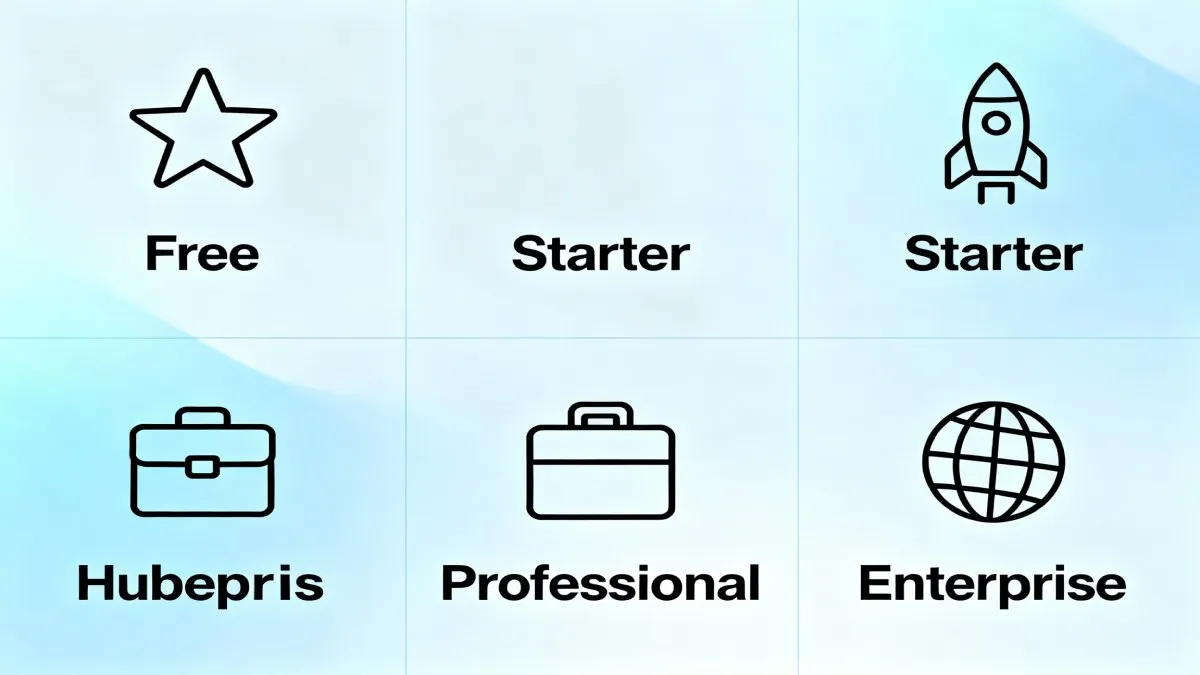
Free Plan
The free plan is suitable for solopreneurs, startups, and small teams. You get unlimited contacts, team members, email integration, deal tracking, and basic reporting. This plan is genuinely enough to manage your business effectively for years if you stay small.
Starter Plan (approximately $15-20 per month)
When you need more automation, better email features, or remove HubSpot branding from your customer-facing tools, the Starter plan is a good next step. This includes expanded templates, basic workflows, and improved support.
Professional Plan (approximately $50-100 per month)
This tier unlocks advanced automation, custom reporting, lead scoring, and sophisticated workflow building. Most growing businesses jump here when the free plan becomes limiting.
Enterprise Plan
For large organizations with complex needs, the Enterprise plan offers unlimited customization, advanced AI-powered features, and dedicated support.
The beauty of HubSpot pricing is that you never pay for what you do not use. Start free, upgrade when you need additional features, and scale gradually as your business grows.
HubSpot CRM Tips and Tricks from Experienced Users
Tip 1: Start with a Clean Contact List
Before importing your first batch of contacts, clean your data. Remove duplicates, ensure email addresses are valid, and standardize company names. A clean database from the start prevents countless headaches later.
Tip 2: Use Proper Naming Conventions
Establish consistent naming conventions for deal stages, properties, and lists. This ensures that when your team looks at the data, everyone understands it the same way. Consistency prevents confusion and makes automation more effective.
Tip 3: Set Up Lifecycle Stages
Define where each contact is in their journey: Subscriber, Lead, Marketing Qualified Lead, Sales Qualified Lead, Customer, Paying Customer. This helps you focus on the right contacts at the right time with the right message.
Tip 4: Create Smart Lists for Segmentation
Do not rely only on manual lists. Create dynamic lists that automatically update based on contact behavior. For example, create a list of contacts who have not been contacted in 30 days or contacts from a specific industry who opened your last email.
Tip 5: Review Your Duplicate Records Regularly
Even with careful setup, duplicate contacts happen. Many people email you from their work email and personal email, or your sales team enters the same contact twice. Use HubSpot duplicate management tools to merge these records regularly. A clean database improves reporting accuracy and prevents confusion.
Tip 6: Use Workflows to Automate Repetitive Tasks
Do not manually move deals through your pipeline or send repetitive follow-up emails. Even the free plan allows basic workflow automation. Set up workflows for tasks like updating lifecycle stages or sending automated follow-ups after specific actions.
Tip 7: Track Your ROI Metrics
Use HubSpot dashboards to track key metrics: number of deals in each pipeline stage, average deal value, conversion rates, and sales cycle length. This data tells you if your process is improving or where you need to make changes.
How to Use HubSpot CRM for Different Scenarios
How to Manage Your Sales Pipeline
In HubSpot, a deal represents a potential sale. To track your sales process effectively:
- Create a deal for each prospect when they show buying intent
- Add the deal amount and expected close date
- Move the deal through your pipeline stages as it progresses
- Add notes and tasks to stay organized
- Track deal history to see how long deals typically stay in each stage
Many sales teams find that just seeing their deals organized visually helps them stay focused and close more business.
How to Set Up Email Sequences for Follow-Up
Even on the free plan, you can create simple email sequences for follow-ups. This ensures you never miss a follow-up opportunity and maintains consistent communication with prospects. Set reminders so your team knows when to reach out next.
How to Track Contact History and Interactions
One of the most powerful features is the contact timeline. Every email, call, meeting, or interaction automatically appears on the contact record. When you need to reach out to someone, you see the entire history before picking up the phone. This makes conversations personalized and effective.
How to Create Reports for Decision-Making
Use HubSpot dashboards to answer important questions: How many deals closed this month? What is the average sales cycle length? Which sales rep is closing the most deals? These insights help you make data-driven business decisions.
Who is HubSpot CRM Best For?
HubSpot CRM is ideal for:
- Solopreneurs and Solo Founders: Managing multiple clients and prospects becomes easier when everything is in one place
- Small Business Teams (2-10 people): The free plan supports unlimited team members, making it perfect for startups
- Sales Teams: Whether you sell B2B services, products, or consulting, HubSpot helps you track and close deals more efficiently
- Growing Businesses: The ability to scale from free to paid plans as you grow means HubSpot can be your CRM for years
- Non-Technical Users: The interface is designed for regular business people, not IT specialists
- Integration-Dependent Teams: If you use many other business tools, HubSpot connects with over 1000 apps
Why Choose HubSpot CRM Over Other Solutions?
While there are many CRM options available, here is why HubSpot stands out specifically for beginners in 2026:
1. Genuinely Free with No Strings Attached
HubSpot free plan is not a limited trial that expires. You can use the core features indefinitely. No credit card required, no surprise charges. This removes the risk when trying a new tool.
2. Designed for User Adoption
Many CRM failures happen because teams do not use the system. HubSpot is deliberately designed to be user-friendly. Your sales team will actually want to use it because it makes their job easier, not harder.
3. Outstanding Educational Resources
HubSpot Academy provides free training, certifications, and detailed guides. If you get stuck, help is just a few clicks away. This support is invaluable for beginners.
4. Marketing, Sales, and Service Integration
While Salesforce focuses mainly on enterprise sales and Pipedrive focuses only on sales pipeline, HubSpot integrates marketing, sales, and customer service. This means one system serves your entire business.
5. Proven Track Record
Hundreds of thousands of companies use HubSpot. It is not some experimental startup tool. The platform is stable, reliable, and continuously improving.
Get Started with HubSpot CRM Now – Completely Free
Common Issues When Setting Up HubSpot CRM and Solutions
Problem 1: Too Many Duplicate Contacts
Solution: Always add email addresses to contacts. HubSpot automatically deduplicates based on email. Use the duplicate management tool regularly to merge old records. Avoid bulk imports without deduplication first.
Problem 2: Team Not Adopting the System
Solution: Train your team specifically on how HubSpot helps their individual job. Show sales reps how it saves them time, not adds work. Start with simple processes and expand gradually.
Problem 3: Workflows Not Working as Expected
Solution: Test workflows with sample records before going live. Review workflow conditions carefully. Remember that workflows sometimes need manual triggers or specific property values to activate.
Problem 4: Email Integration Not Logging Emails
Solution: Ensure the email extension is installed in your browser. Check that tracking is enabled. For Gmail, make sure you granted HubSpot the necessary permissions.
Problem 5: Difficult Finding Contacts You Need
Solution: Create custom lists with filters. Use the search function effectively by searching for email domains or company names. Create list views for your most commonly needed contact groups.
FAQs: Questions Beginners Ask About HubSpot CRM Setup
Q: How long does it actually take to set up HubSpot CRM?
A: Basic setup takes 10-15 minutes as described in this guide. However, fully optimizing your CRM with all features, integrations, and automation typically takes 1-2 weeks of gradual configuration. The key is to start simple and improve over time.
Q: Do I need to know anything technical to use HubSpot CRM?
A: No. HubSpot is specifically designed for non-technical business users. If you can use Google Sheets and send emails, you can use HubSpot. Advanced features like custom workflows require a bit more thinking, but not coding knowledge.
Q: Is HubSpot free plan really good enough for my small business?
A: For most small businesses and solopreneurs, yes. You get unlimited contacts, team members, email integration, deal tracking, basic reporting, and live chat. Thousands of businesses operate successfully on the free plan.
Q: Can I upgrade from free to a paid plan anytime?
A: Yes, absolutely. You can switch plans anytime. Your data stays with you and nothing is lost. Many businesses start free, test the platform, and upgrade only when they need additional features.
Q: What is the best way to import my existing contacts?
A: Export your contacts as a CSV file first. Remove duplicates manually. Ensure the CSV has proper headers. Then use HubSpot import function and map the fields. Starting with clean data prevents problems later.
Q: How do I connect HubSpot with my other business tools?
A: HubSpot connects with over 1000 apps through native integrations or Zapier. Go to Settings, find Integrations, and search for your tool. Most connections are just a few clicks away.
Q: Can my entire team access the same customer information?
A: Yes. You can invite unlimited team members on the free plan. Everyone sees the same customer data in real time. This is one of the biggest advantages of using a CRM versus spreadsheets.
Q: Is my data safe in HubSpot?
A: Yes. HubSpot is enterprise-grade security with data encryption, regular backups, and compliance with international standards. Your customer data is safe and secure.
Q: What happens if I need professional help setting up HubSpot?
A: You have options. HubSpot Academy offers free training. Many HubSpot certified consultants can help with implementation. You can hire setup specialists through platforms like Fiverr who offer affordable HubSpot configuration services. However, for most basic setups, the guides and videos available make professional help optional.
Q: Should I set up automation immediately or start simple?
A: Start simple. Get comfortable with basic contact and deal management first. Once you understand how the system works, then add automation. This prevents confusion and ensures your workflows actually solve real problems.
Q: What is the difference between a contact and a deal in HubSpot?
A: A contact is a person or company you are interacting with. A deal represents a specific sale or transaction opportunity with that contact. One contact might be associated with multiple deals over time.
Best Practices for HubSpot CRM Success in 2026
Practice 1: Maintain Data Hygiene
Treat your CRM data like your business depends on it, because it does. Regularly review and clean your data. Remove bounced emails, merge duplicates, and update outdated information. A clean database means better decisions.
Practice 2: Create Clear Documentation
Document how your team uses HubSpot. What do lifecycle stages mean? How should you fill in custom fields? When should deals be created? This documentation helps new team members get up to speed quickly.
Practice 3: Use Consistent Data Entry Standards
Establish rules for how data gets entered into HubSpot. Should company names be in title case? Should deal amounts always have currency symbols? Consistency makes the data more useful for reporting and automation.
Practice 4: Review Metrics Regularly
Look at your dashboards weekly or monthly. Are your sales cycles getting shorter? Are conversion rates improving? Use data to drive decisions about process improvements.
Practice 5: Train Your Team Continuously
HubSpot adds new features regularly. Your team knowledge should improve over time too. Dedicate 15 minutes monthly to learning one new feature or workflow.
Start Your Free HubSpot CRM Setup Today
Pro Tips: Advanced HubSpot Setup Tricks for Quick Wins
Trick 1: Use Gmail and Outlook Sync
Most people do not realize that HubSpot can automatically sync with Gmail and Outlook. This means contacts from emails automatically populate in your CRM without any manual action.
Trick 2: Create Task Queues for Your Team
Use HubSpot task queues to create prioritized to-do lists for your sales team. This keeps everyone focused on the most important activities for the day.
Trick 3: Set Up Deal Pipeline Stages That Match Your Process
Do not use HubSpot default stages if they do not match how you actually sell. Customize stages to represent your real sales process. This makes the system actually useful for managing your business.
Trick 4: Use Meeting Links for Scheduling
HubSpot lets you create shareable meeting scheduling links. Include these in emails to prospects. When they book a meeting, it automatically creates a calendar event and a task in HubSpot.
Trick 5: Set Reminders for Important Follow-ups
Do not rely on memory. Set reminders in HubSpot for every important follow-up. This ensures you never miss an opportunity to move a deal forward or reconnect with a contact.
Affiliate Implementation Services: Professional Setup Help
If you want professional guidance in setting up your HubSpot CRM but prefer to avoid expensive enterprise consultants, consider hiring a freelance HubSpot specialist. Platforms like Fiverr offer affordable HubSpot setup and configuration services where experienced professionals can help you build custom workflows, set up integrations, and optimize your CRM faster than doing it yourself.
A professional can typically complete a comprehensive setup in 5-10 hours, which might take you weeks to figure out on your own. For many businesses, this investment pays for itself by accelerating your time to value and avoiding costly setup mistakes.
Conclusion: Start Your HubSpot CRM Journey Today
Setting up HubSpot CRM in 10 minutes is completely realistic, and it is one of the best decisions you can make for your business. You now have a centralized system to manage relationships, track sales, and organize customer information.
The step-by-step process outlined in this guide takes the complexity out of CRM setup. You do not need to be technical. You do not need to spend days configuring. In fact, starting simple and improving gradually is the best approach.
Remember: The fastest growing businesses are not always the ones with the fanciest CRM. They are the ones that actually use their CRM consistently to stay organized, follow up promptly, and make data-driven decisions.
HubSpot gives you the tools to do all three. Whether you are managing a one-person operation or a growing team, this guide has shown you exactly how to get started.
Get Started with HubSpot CRM Now – Completely Free
Your business deserves to be organized. Your team deserves better tools. And you deserve the peace of mind that comes from knowing every customer interaction is tracked and nothing falls through the cracks.
Start today. Set up HubSpot in 10 minutes. Watch your business improve from day one.

Julie Jung
Julie is a Senior Research Analyst at Shrtu concentrating on sales and marketing software. Prior to joining Shrtu, she worked at a Big 4 accounting firm and at a BI software company where her roles focused on supporting growth and B2B marketing and sales efforts. These experiences have cultivated her passion for learning how technology impacts businesses, and how it delivers results. She earned her Bachelor of Science in Marketing from the University of South Florida.